Before you start work on a new asset make sure the “studio” for this asset has been created in Content/studios.
Start by selecting a new movie or series
Enter the name of the title, this original title will be used to track the asset, in the export the title from tasks / info is used.
If you would like to trace the asset by using your intenal ID this can be added as an option.
Click on the “Save movie” to create the asset. A IntID will now be generated.
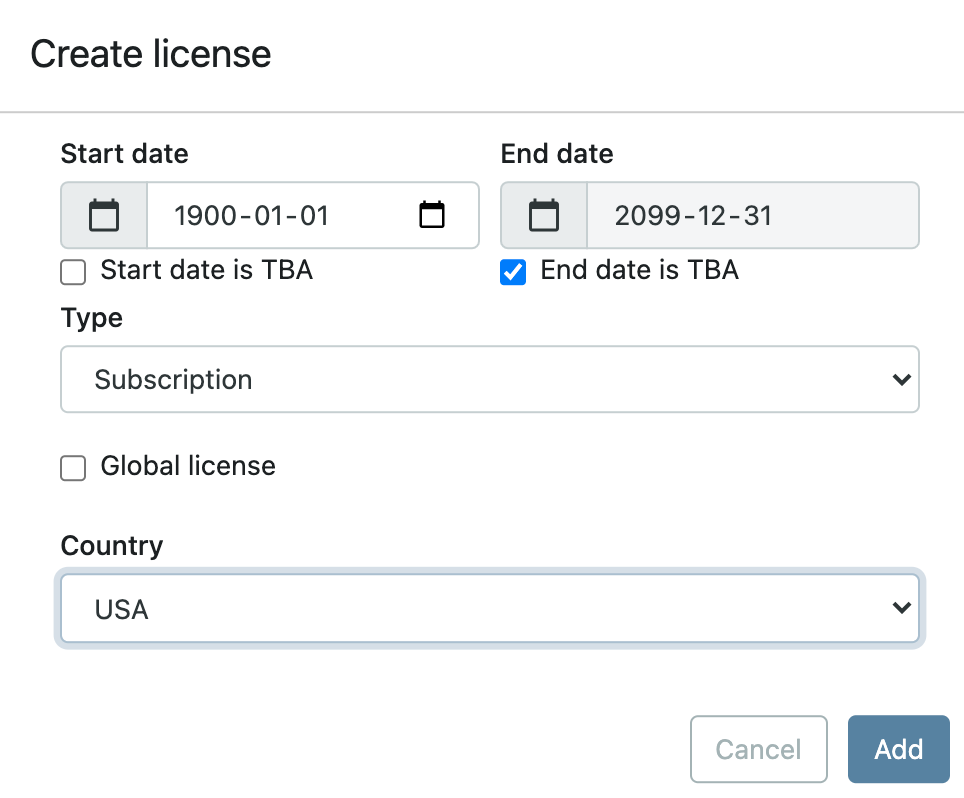
In the licenses area you can now set the licens for this asset. The formatting of date is set by the browser and the system does not accept illegal dates. TBA = To be announced, if the start date is set to TBA the asset will not be delivered. If the end date is set to TBA the asset will be delivered to the platform with a date set to the end date as far in the future that the platform support.
Select the licens type in the drop down.
| Subscription (SVOD) | A defined period during which a user has access to a package which will renew itself automatically for the same period if not cancelled. Typically monthly or yearly subscriptions are offered | |
| Rental (TVOD) | A defined period during which a user has access to an asset. When the period ends the user loses access automatically. Typical for TVOD with e.g. 48 hours access | |
| Free (FVOD) | Free assets. | |
| EST (Electronic Sell Through) | A user buys the right to access an asset whenever and how often she likes. The period is defined in the licence agreement |
The “Allow export to” can be pre configured to yes or no, and gives the user an option to prevent an export to a certain platform.

2 thoughts on “Create new movie”